THE DOCUMENT FIELD GUIDE · SPREADSHEETS
Keep Excel and PDF formatting usable.
A PDF is a printed page. An Excel file is a workbook with cells, formulas and print settings. Moving between them cannot preserve every feature. These AllDoc examples show what to check before you share the result.
Guide reviewed 7 November 2026 · Historical print/table examples tested 30 October 2026; current layout guidance reviewed 7 November 2026 · Maintained by Mohit Nagar, Founder, AllDoc
Start with the file you still have
| Your goal | Use | Expect |
|---|---|---|
| Share a fixed, readable report | Excel to PDF | Printed pages based on workbook print settings. Formulas become displayed results. |
| Reuse a table when only a PDF remains | PDF to Excel | One worksheet per page combines editable detected tables and positioned text, with approximate styles and sizes. Original formulas do not return. |
| Translate labels and keep the workbook | Translate document, with XLSX input and Excel output | Eligible cell text changes while the workbook structure is retained. Review longer translated text and formula results. |
If you have the original spreadsheet, work from that file. Exporting it to PDF and converting back loses information that a PDF never stored, including editable formulas and many spreadsheet features.
Example 1: a wide report should span several readable pages
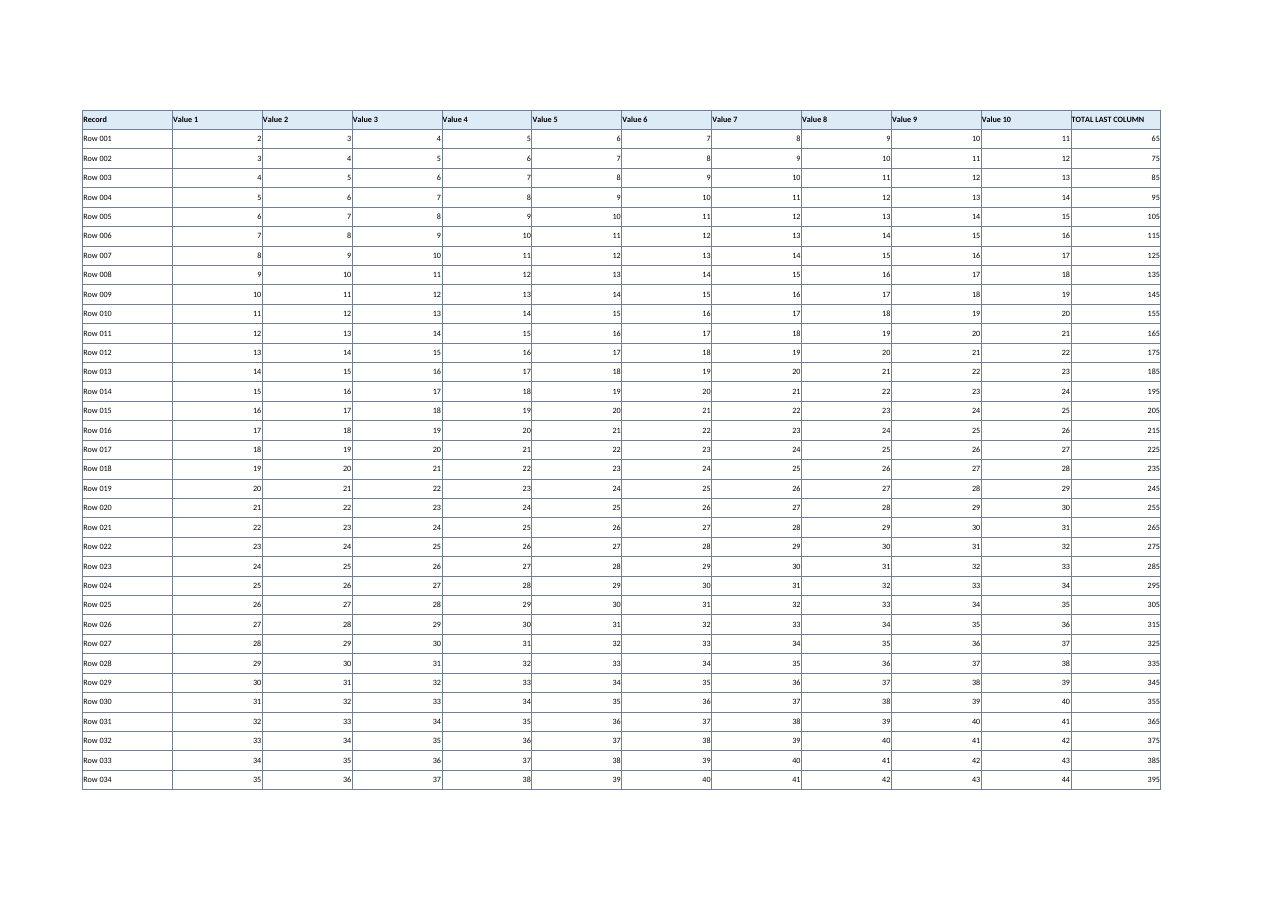
Our synthetic workbook has 12 columns and 100 data rows. The final column contains totals. We set the print area to A1:L101, used A4 landscape, repeated row 1, and fitted the width to one page while leaving the height automatic.
Observed result: AllDoc’s Office conversion produced three landscape pages. The first and last data rows were present, the last column appeared on every page, and the header repeated. A deliberately hidden sheet and the cell outside the print area did not appear. This checks those print settings; it does not prove that every Excel chart or font will render identically.
Download sample workbook (.xlsx) · Download the three-page result (.pdf)
- Select the intended print area. Remove accidental content far below or to the right of your table. Check each sheet’s print preview, including whether hidden sheets should stay excluded.
- Set paper size and orientation. Landscape often suits wide tables. Use the paper size expected by the recipient.
- Fit width, then let height grow. In your spreadsheet’s page setup, set width to one page and height to automatic. Forcing a long sheet onto one page can make all the text tiny. If 12 columns are still too small, use larger paper or split the report into meaningful sections.
- Repeat the header row. A second page full of numbers needs column labels too. Save the workbook, upload it to Excel to PDF, then check every output page.
AllDoc uses LibreOffice for Office conversion. Complex charts, unavailable fonts, external connections and Microsoft-specific features can still differ. For an exact final print of a complex workbook, compare with the original application’s own PDF export.
Example 2: compare recovered tables with the PDF
Our one-page synthetic source PDF contains a bordered table with a merged heading, a vertically merged “Batch” cell, a two-line description and the literal value 001.20. The comparison below records our earlier 30 October 2026 geometry-only export. It illustrates what to inspect; it is a historical result, not a preview of the current style-aware converter.
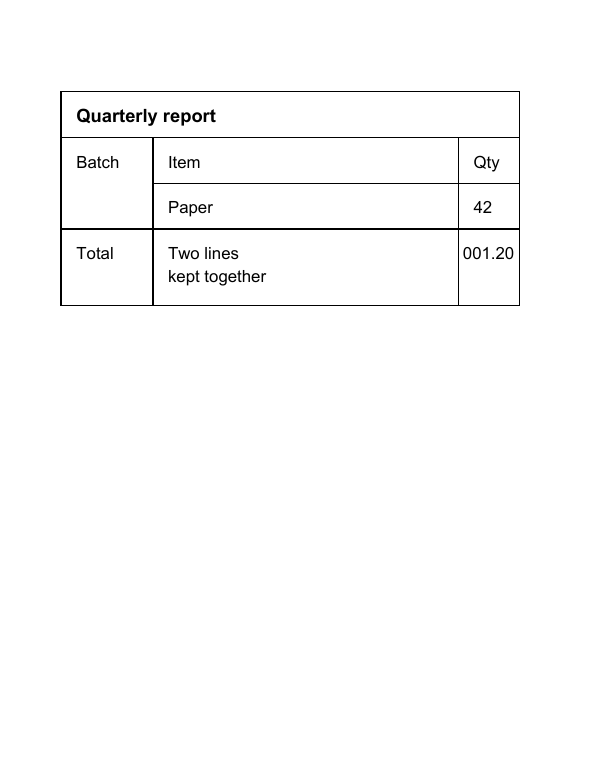
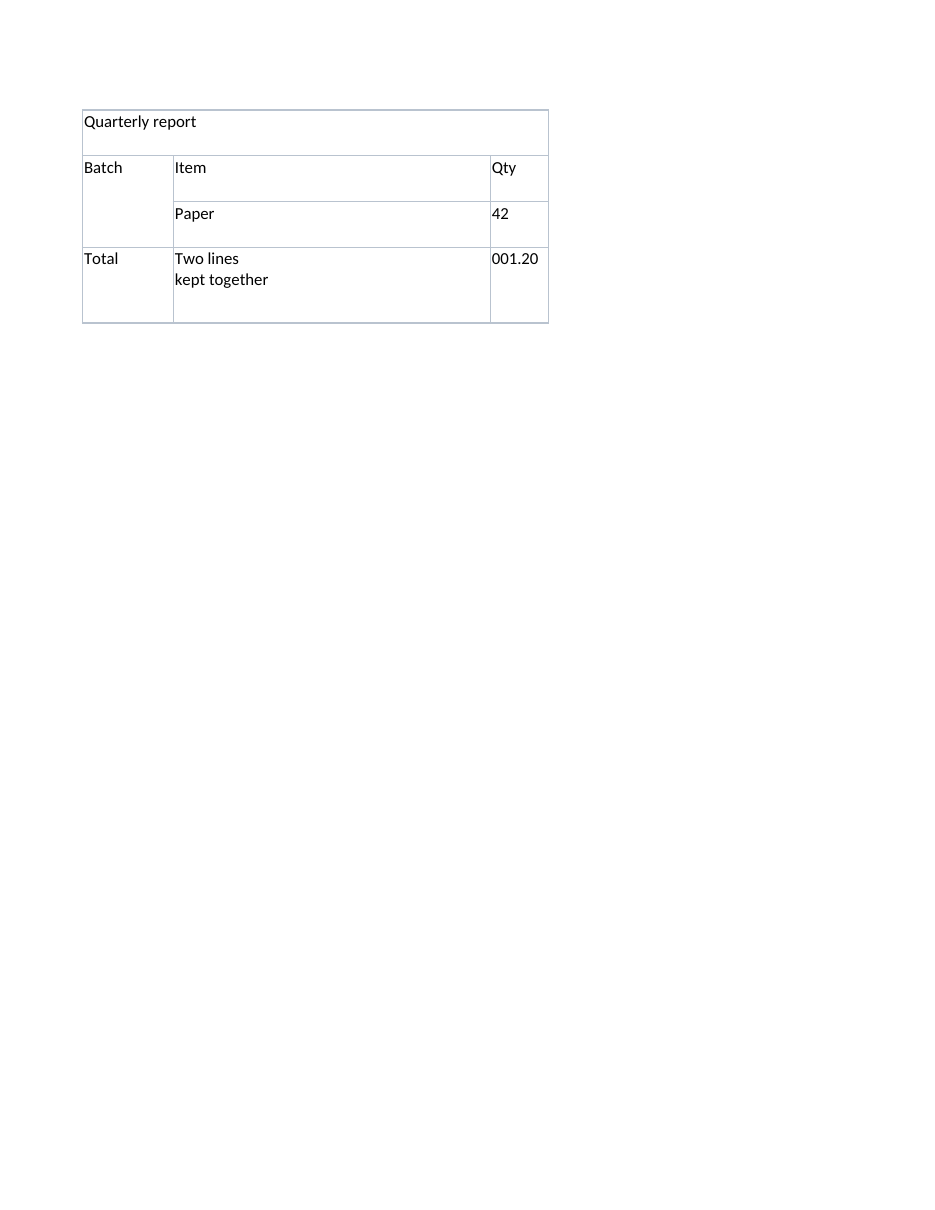
Earlier observed result: the horizontal and vertical merges, “Two lines / kept together” text, and leading zeros in 001.20 survived. The converter reconstructed approximate row heights and column widths, wrapped the text and added cell borders. It did not recover the original bold font or border appearance.
Download source table (.pdf) · Download the earlier table result (.xlsx)
Why values stay text: a code such as 001.20 may be an identifier, not a number to calculate with. Converting it automatically to a number would remove the leading zeros. Selectively convert verified numeric columns in your spreadsheet application after checking decimal separators, dates, currency and identifiers. Do not expect totals to recalculate until you deliberately add formulas.
The current converter goes further: each source page becomes one “Page N” worksheet, placing detected tables and surrounding text together in a shared coordinate grid. It attempts common font names and sizes, bold/italic text, colours, cell fills, borders, alignment and merged spans. Spacing and row/column sizes are approximate. Borderless tables require reliable repeated column alignment; inferred pages are identified in the Output notes for review. Prose uses positioned layout cells without inventing table columns.
What still needs review: fonts are referenced, not embedded, and compatibility substitutions can change appearance. Text wrapping and complex layouts can differ. Images, complex graphics and links are not embedded; affected pages are listed in the Output notes. Original spreadsheet formulas are not recoverable. Compare headings, cell boundaries and surrounding text with the PDF; a successful export is not a guarantee of identical appearance.
Blank pages retain an empty worksheet so source-page order remains clear; spreadsheet applications may skip empty sheets when printing. A nonblank page with no readable text is rejected rather than silently omitted, and a file with only blank pages is also rejected. Text that looks like a formula, such as =1+1, stays literal text; identifiers such as 00120 retain their leading zeros. Inspect the values before deliberately converting numeric columns or adding formulas.
AllDoc’s PDF-to-Excel tool does not perform OCR. Limits are 15 MiB input, 100 PDF pages, 350,000 extracted characters, 30,000 detected table cells or text blocks and 32,767 characters per cell. For a scan, obtain and verify readable text with a suitable OCR application first; whenever possible, ask for the original spreadsheet.
Example 3: keep the XLSX instead of rebuilding it from text
Upload an .xlsx file in Translate document, choose the source and target languages, then select Excel (keep workbook layout). The Excel output option appears after an XLSX is selected. PDF output also uses the workbook’s print setup; Word and Text output create a simpler text document.
We compared an English test workbook with a version containing fixed Hindi replacement strings. The title changed from “Quarterly report” to “तिमाही रिपोर्ट”; the merged title range A1:C1, numeric values 1234.5 and 0.18, and formula SUM(B2:B3) remained. Both workbook exports produced two PDF pages, with the first landscape and the second portrait. These were synthetic layout checks, not a benchmark of translation accuracy or a sample financial calculation.
- What is retained: cell positions, numeric and formula cells, styles, merged ranges, dimensions and print settings. The translation changes eligible cell text rather than rebuilding the workbook from extracted paragraphs.
- What needs review: longer translations can overflow narrow cells or fixed row heights. Widen the column, enable wrapping or adjust row height in the downloaded workbook, then recheck print preview. Fonts must support the target script.
- What is not translated: sheet names, table column headers, chart/shape text and text produced by formulas. Preserving table headers avoids breaking structured references. A workbook is not necessarily fully localized just because its ordinary cell labels changed.
- Rich text: mixed formatting within a single cell can be simplified to the first run’s style. Review any cell that uses several fonts or emphasis styles.
- Older .xls files: save a fresh .xlsx copy in your spreadsheet application first when preserving workbook structure matters. The older format does not use the same XLSX preservation path.
The workbook path permits 15 MiB, 20 worksheets, 100,000 stored cells and 20,000 translatable text cells / 300,000 text characters. PDF output permits 20 pages. Blank-looking cells with stored formatting can contribute to workbook size; reduce an unnecessarily large used range in the original application instead of changing the file extension.
A short check before sending the result
- Compare the first and last row of each table and the last column on every page. Check merged headings and repeated labels.
- Inspect one identifier with leading zeros, one decimal, one date and one total against the source. PDF-to-Excel values are text; XLSX translation retains formulas but their results still need review.
- Read translated labels in context, including negative values, units and short abbreviations. Check for clipping and missing glyphs at normal reading size.
- Check hidden sheets, print areas and page count. Save the finished download promptly and retain your original file.
All downloads on this guide are small, synthetic examples created for testing; they contain no customer documents. These examples establish the outcomes shown, not a guarantee for every workbook. If your result differs, contact AllDoc support with the operation, file type and a description of the affected cells. Share a small anonymized sample only if needed; remove private information first.
Related: document translation and audio · scanned versus selectable PDFs · file processing and retention · all guides